
How to Create a New Famil Record
This guide provides a walkthrough to create a Famil in Hubspot. From naming the Famil to specifying details like group size and owner, follow these instructions to properly set up your Famil within the CRM. The purpose is to fill out everything you know. Any unknown fields may be added or updated later. In this walkthrough, we will use example data to illustrate the process.
Go to app.hubspot.com
1. Click "CRM"
Access the CRM section.

2. Click "Famils"
Navigate to the Famils tab.
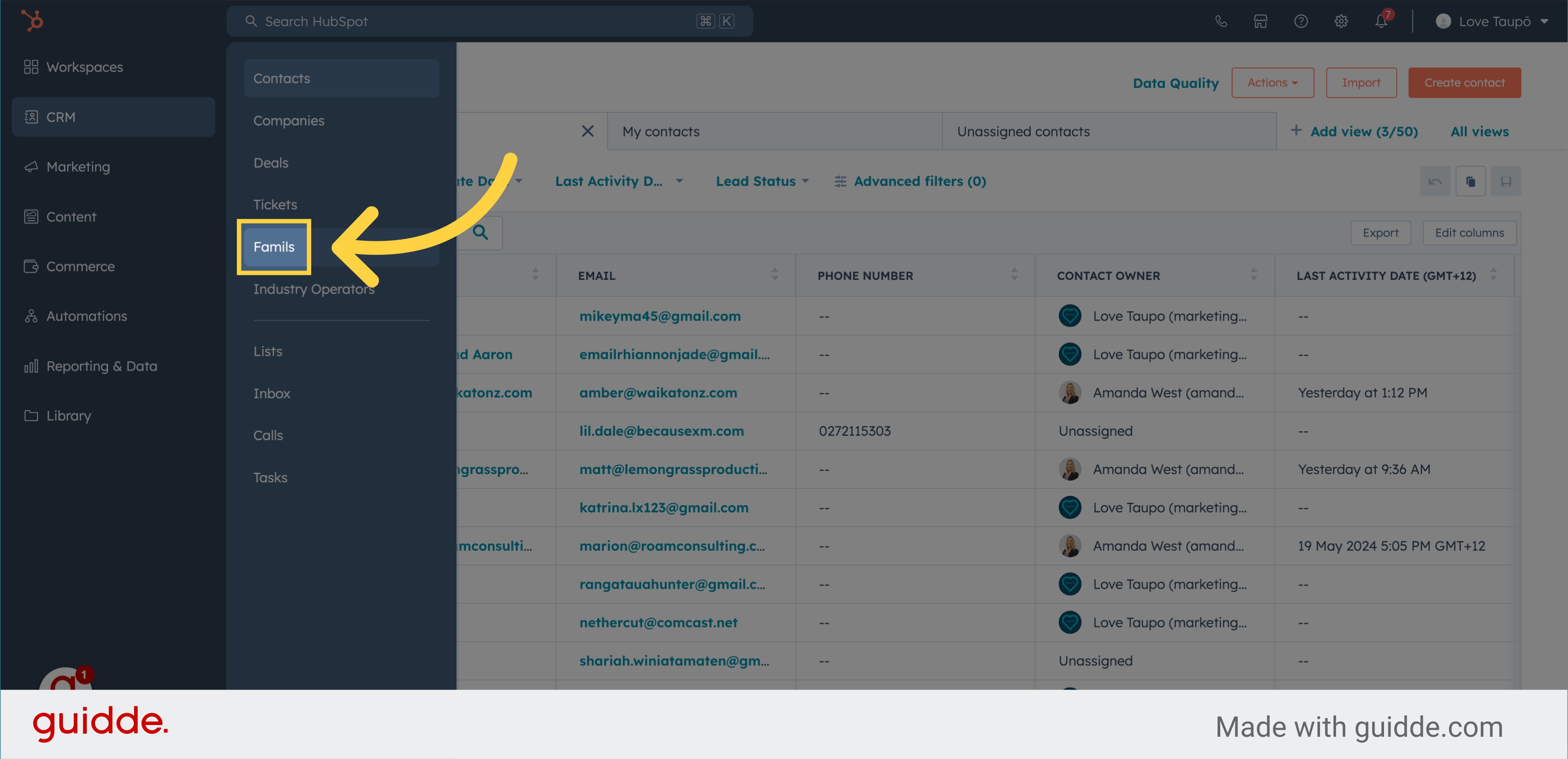
3. Click "Create Famil"
Initiate the creation of a new Famil by clicking on the orange button in the top right corner of the screen.
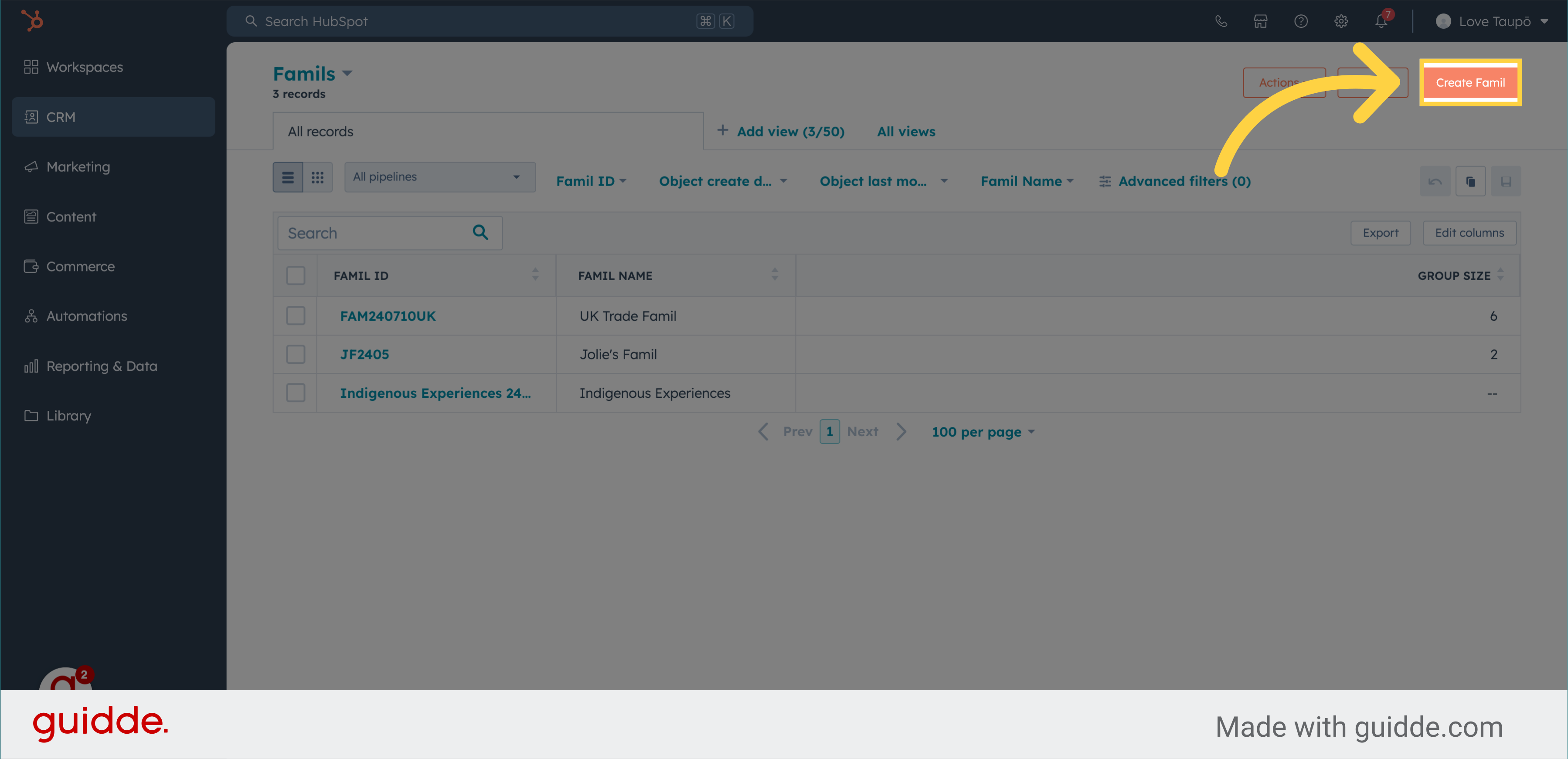
4. Enter Famil Name
Enter a descriptive name for your Famil in this field. In this example, we will enter "Australian Trade Famil" as the Famil Name.
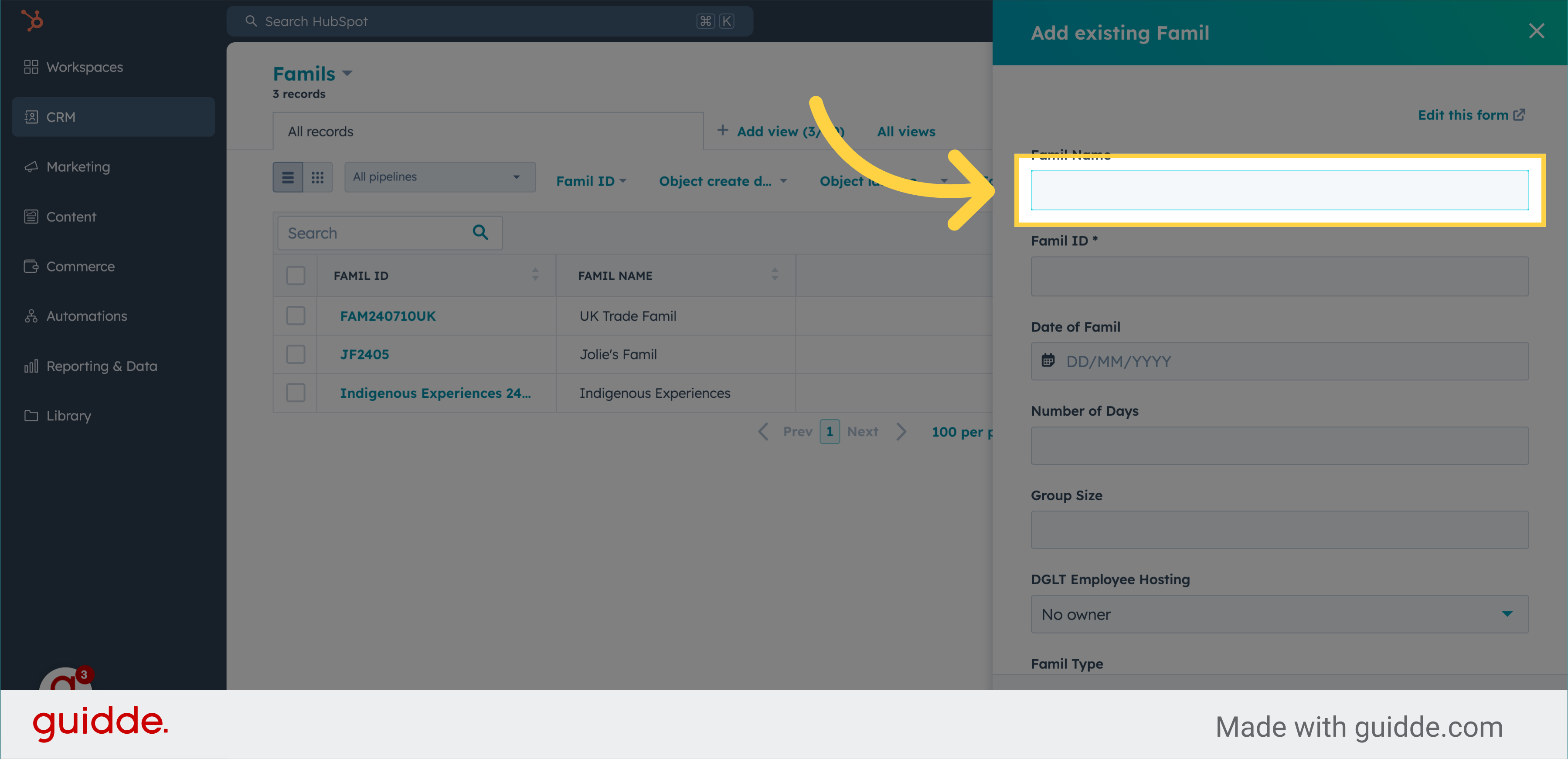
5. Enter Famil ID
This field is compulsory and it must be a unique name. Use the following naming convention: - Start with the three-letter suffix "FAM." - Follow this with the start date of the Famil in YYMMDD format. - In the rare circumstance where there are two Famils starting on the same day, optionally add a three-letter suffix. This suffix can be an acronym or descriptor from your Famil name. Example: If your Famil starts on May 28, 2024, and is a group from Australia, the Famil ID might be "FAM240528AUS."
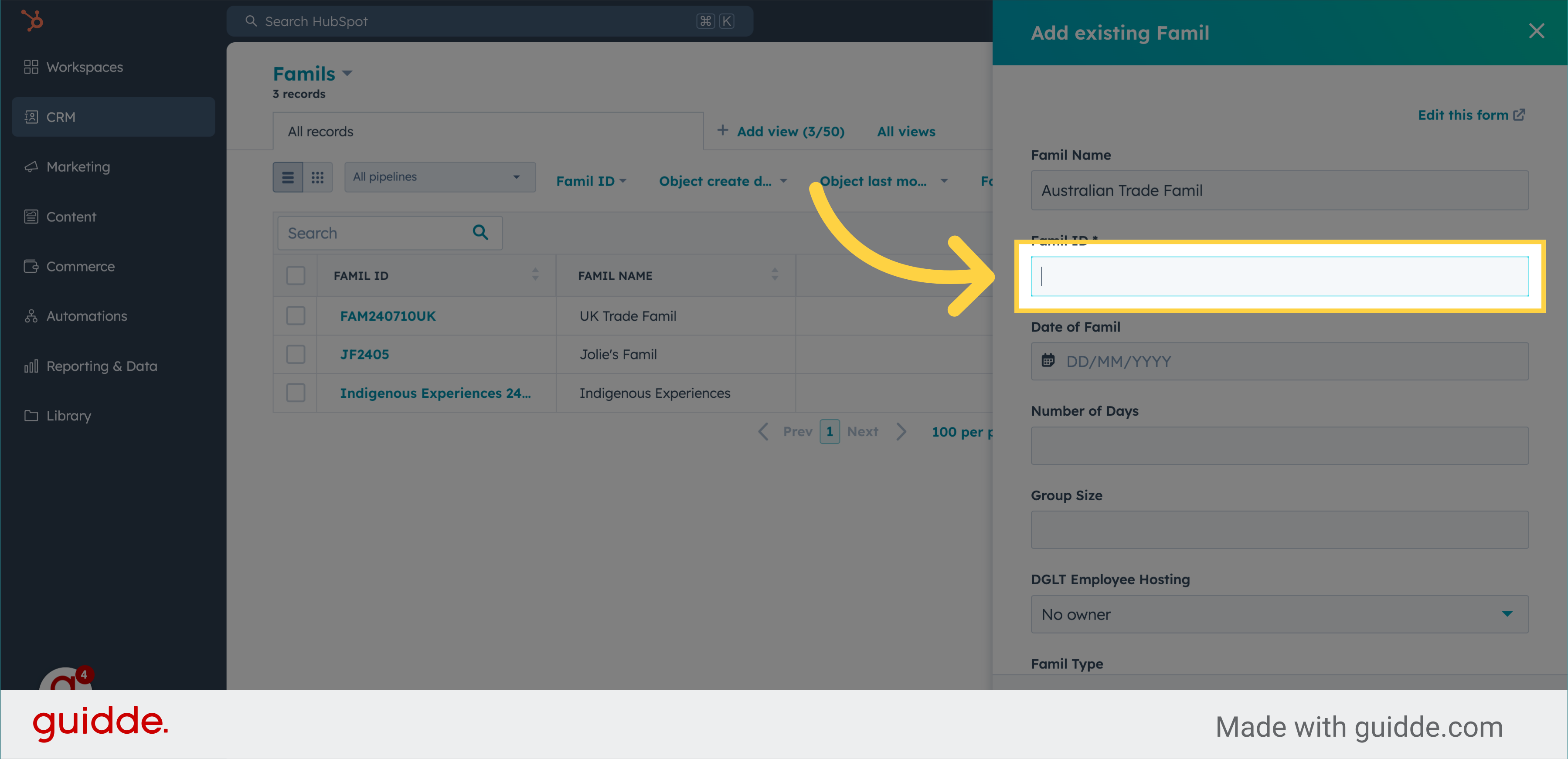
6. Enter Date of Famil
Use the date picker and enter the start date of the Famil.
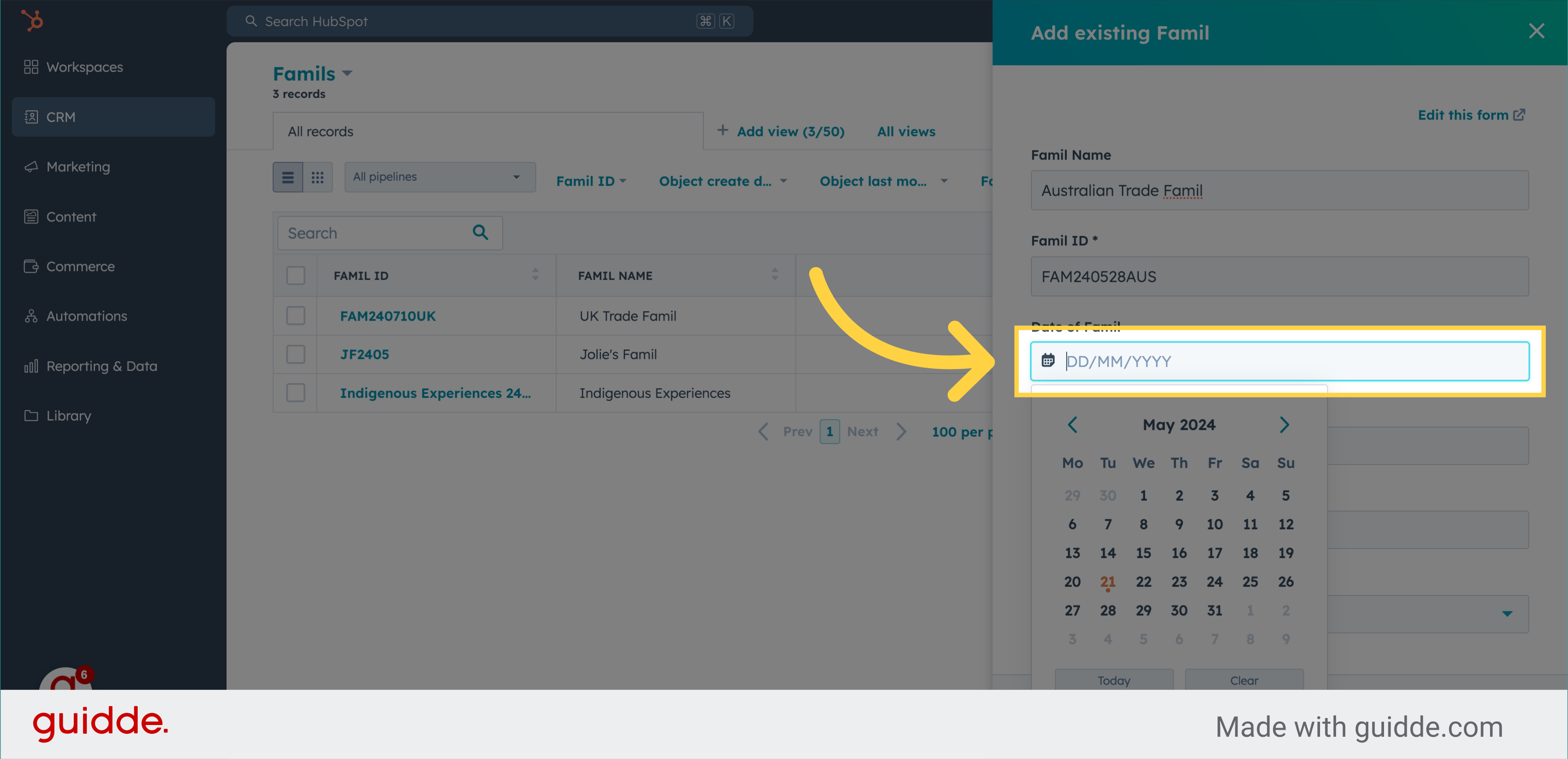
7. Duration of Famil
Enter the duration of the Famil in days.

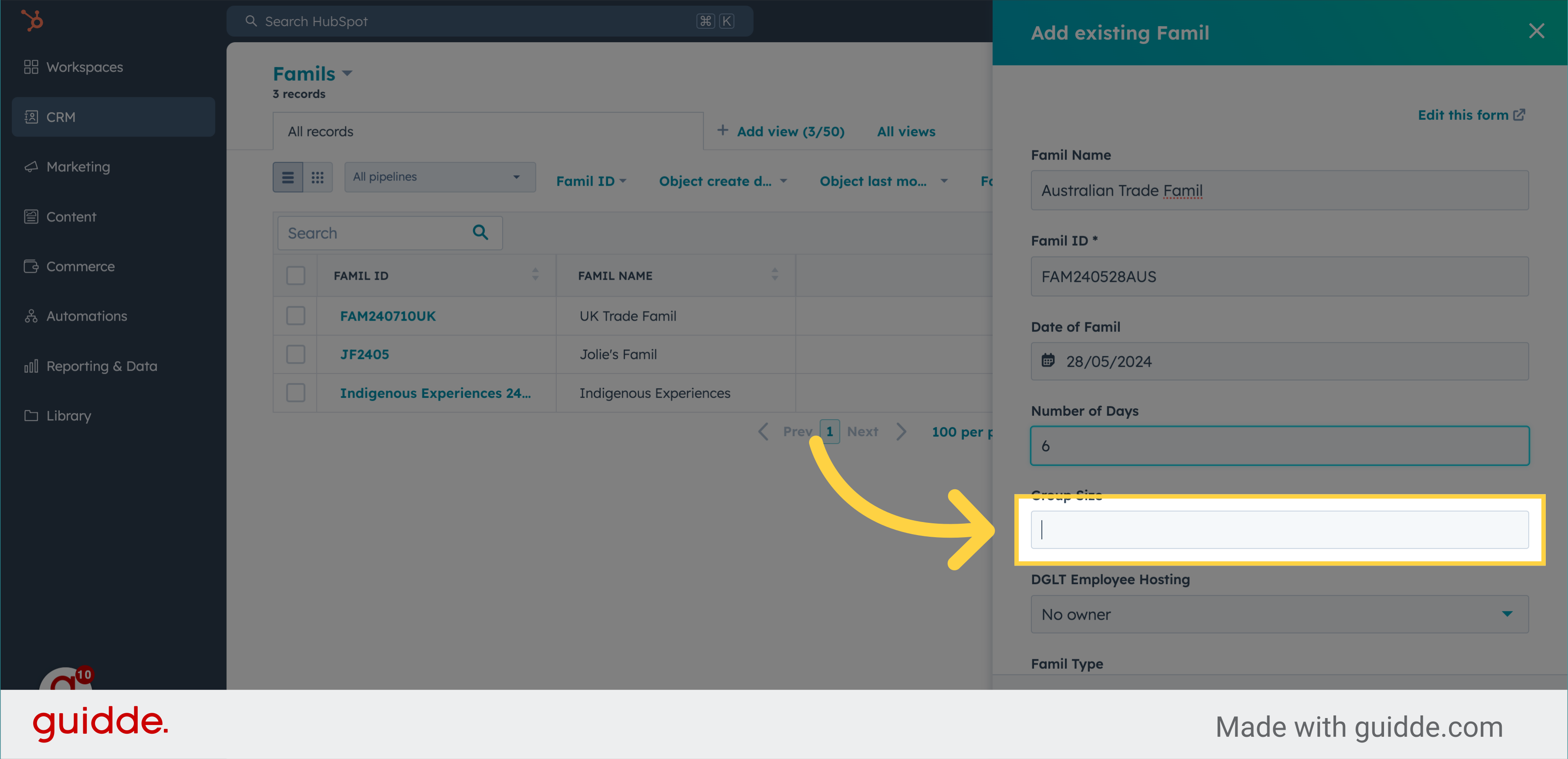
8. Enter Group Size
Enter the estimated number of attendees on the Famil.
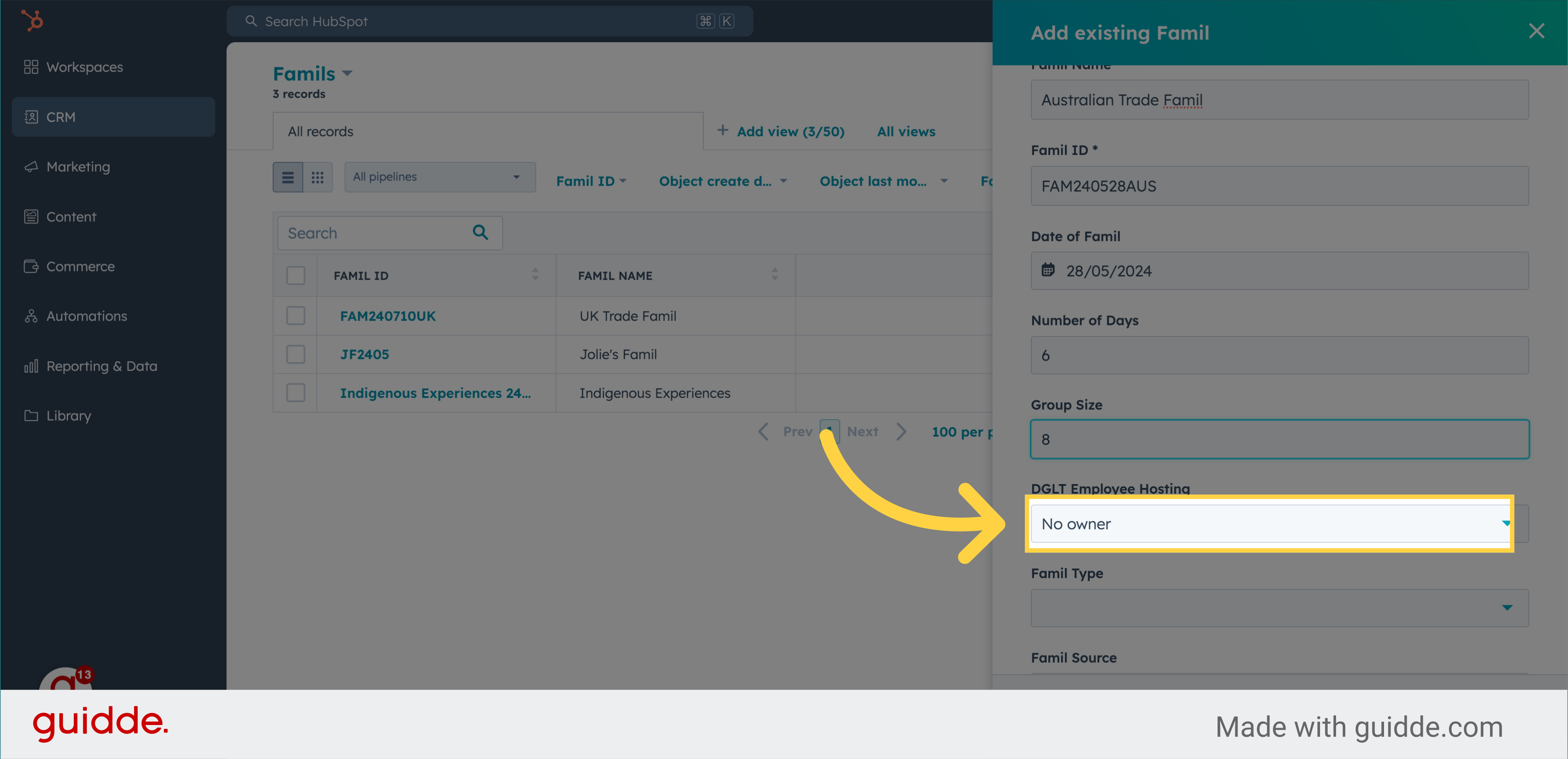
9. Select DGLT Host
Choose from a dropdown list the DGLT employee who will be hosting the Famil.
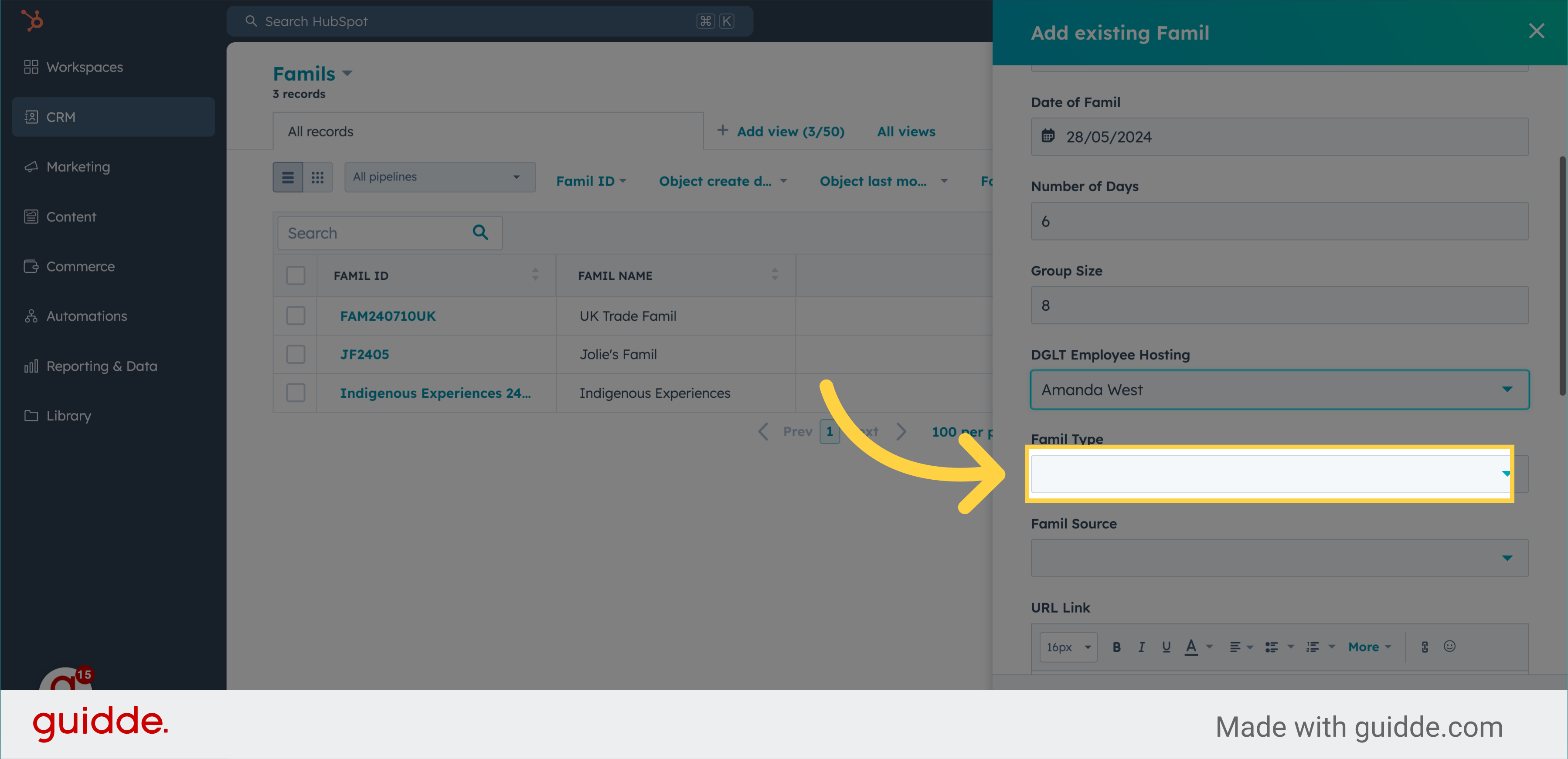
10. Select Famil Type
Select the Famil type from the dropdown options: Trade, Media, Photoshoot, Business Events, or Other.
11. Select Famil Source
Select the source of the Famil event from the dropdown. Options are: Trade, Media, Photoshoot, Business Events, or Other.
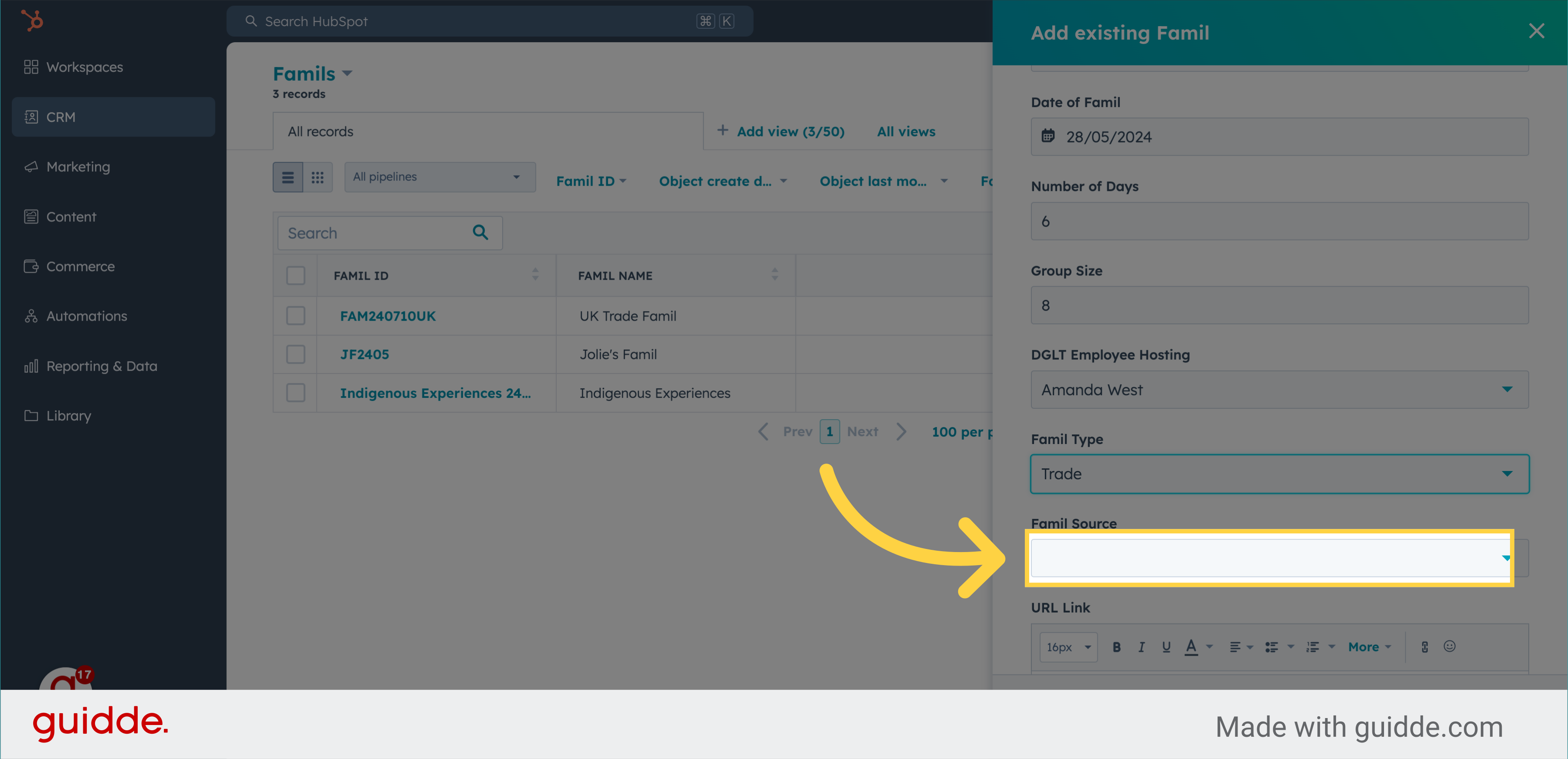
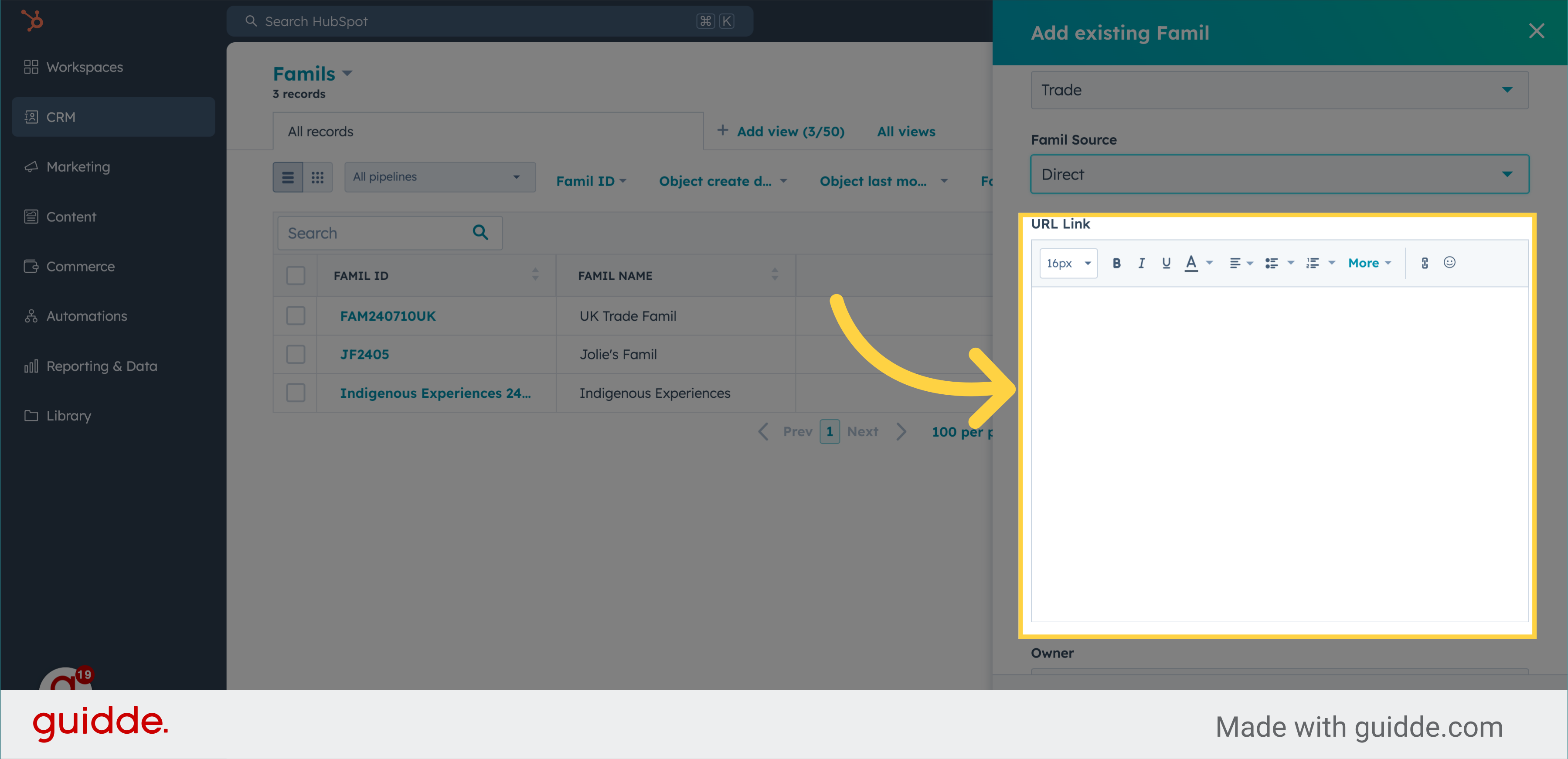
12. TNZ Tourwriter URL goes here
If available, enter the URL for the tourwriter itinerary
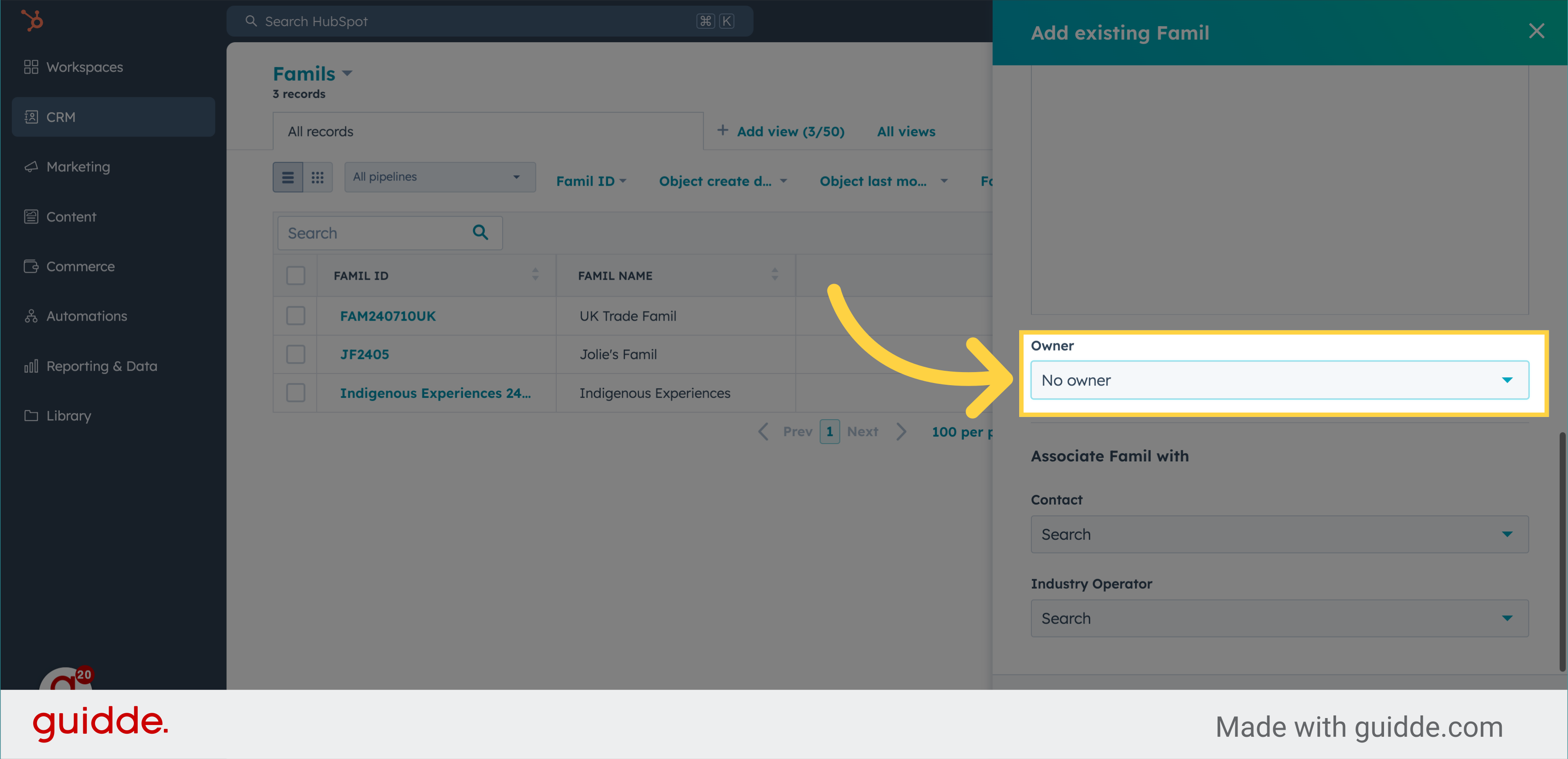
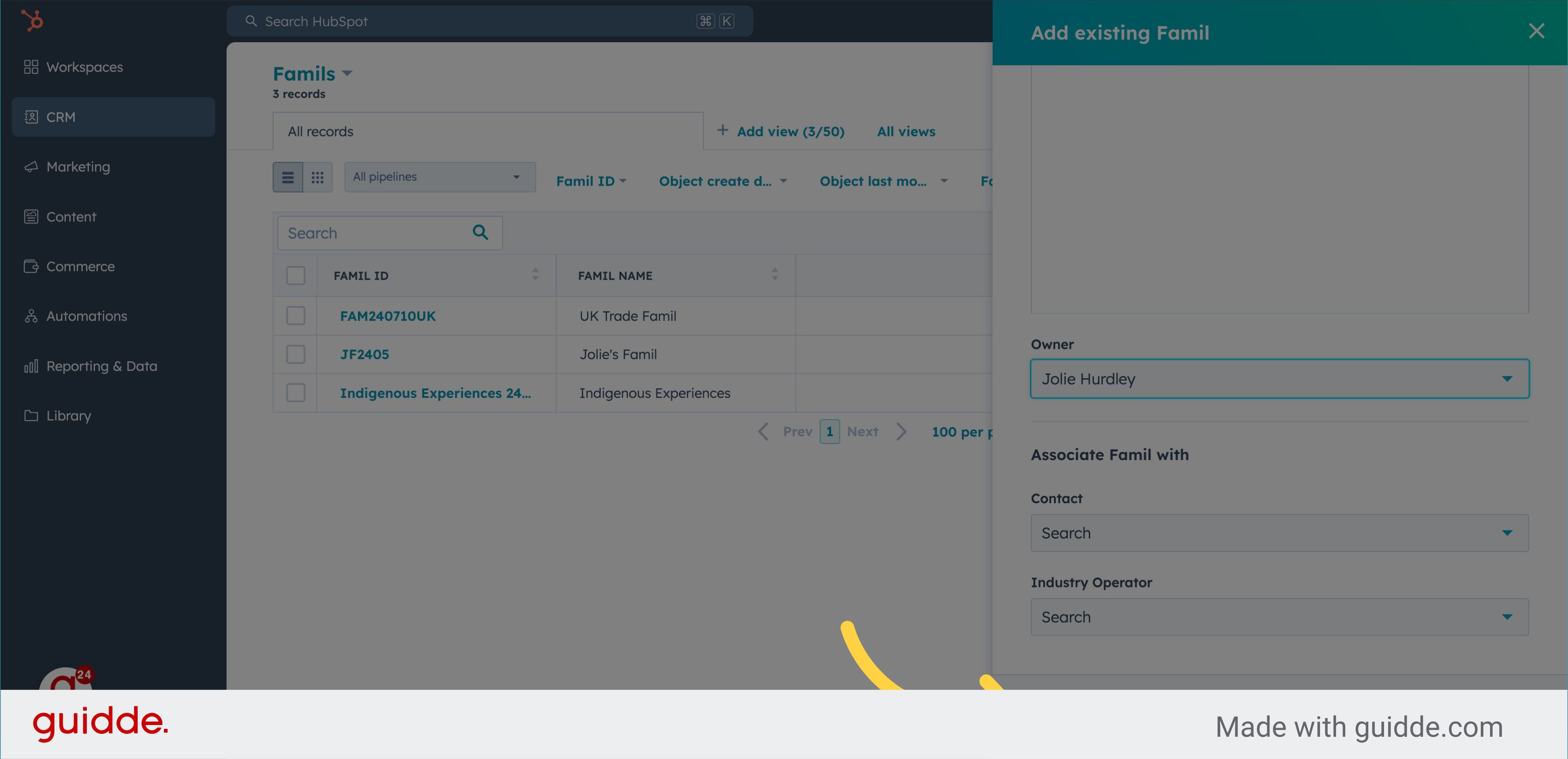
13. Select Owner
Choose the DGLT business owner of this Famil
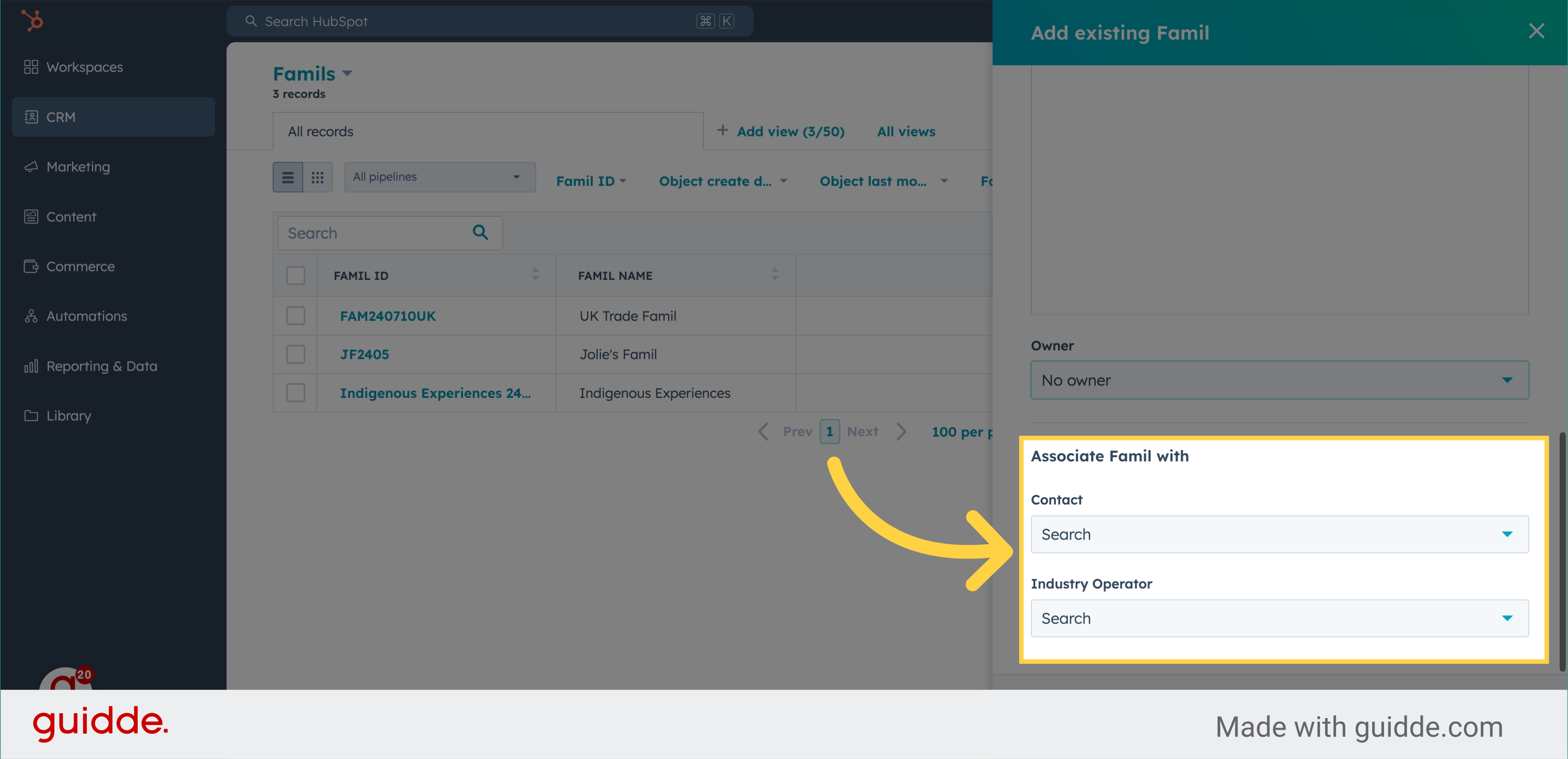
14. Optional Data Entry of Associated Contacts and Industry Operators
In this initial step of creating your Famil, you can associate contacts (participants) and industry operators if known at this time. You can also add these later.
15. Click to Create Famil
When you have completed these steps be sure to select the Create Famil button to save the data you have entered here.
Updating the Famil Object after you have initially created it After creating the Famil using the right-hand side panel, you will be directed to the Famil detail screen. Here, you can further customize the details. This screen follows the standard HubSpot functionality for commonly used objects such as contacts and companies: Add Notes, Tasks, Emails, Calls, Meetings. Attach files to the Famil object. Associate Contacts (proposed participants), Industry Operators (included in the agenda), and Companies associated with the Famil. This guide covered the process of creating a Famil in Hubspot for employee training purposes. From accessing CRM to inputting details like name, group size, and owner, the precise instructions ensure a seamless setup of your Famil within the application.