How to use Advanced Filters to view imported contacts or companies.
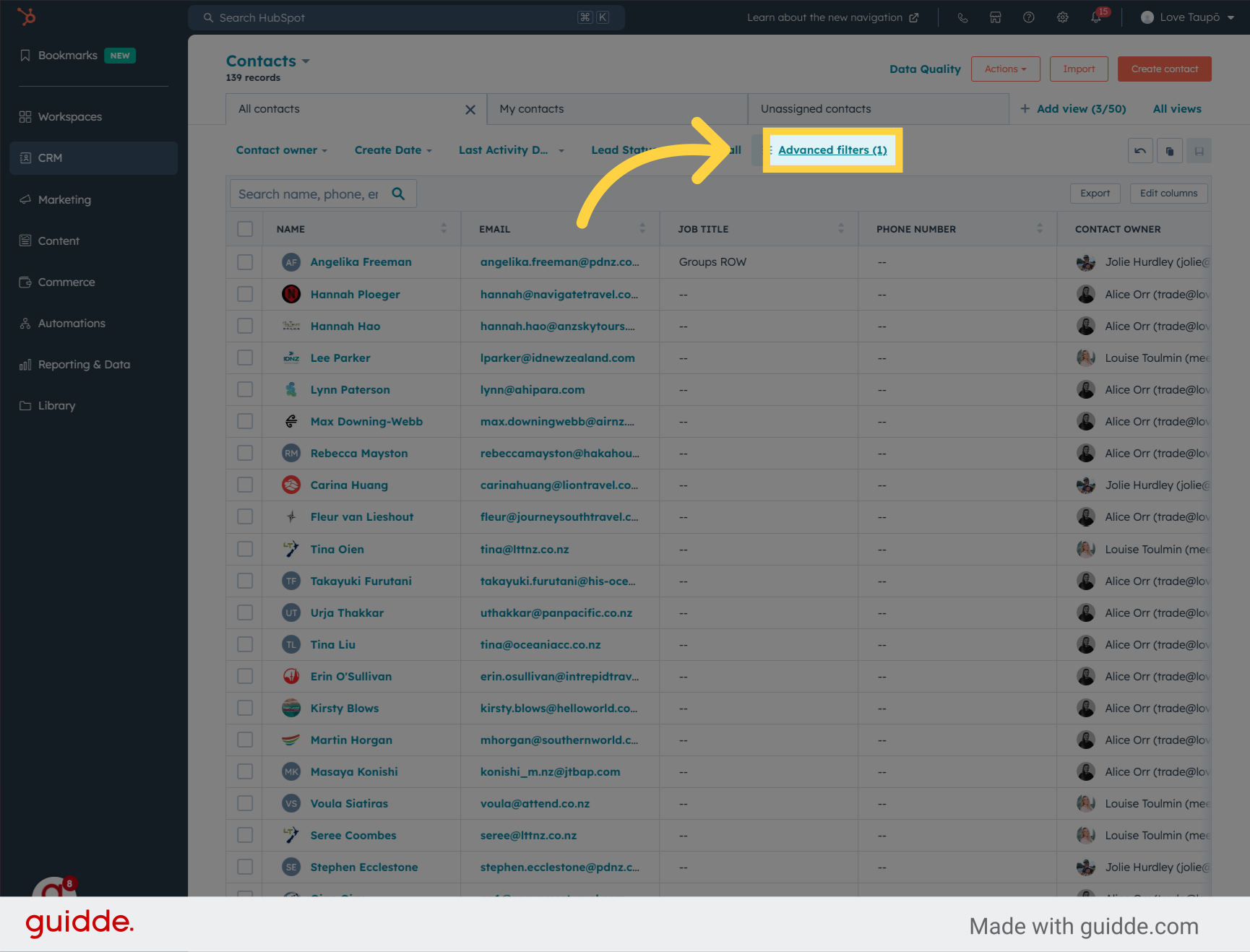
This is a brief, step by step process to show you how to add a filter to your contacts view. In this example to look at recently imported contacts. It also applies for CRM>Companies as well.
Go to app.hubspot.com
1. Click "Advanced filters"
This will allow access to the advanced filters panel.

2. Enter "import"
This will provide access to the "Import" filter option

3. Click "Import"
Choose "Import" as the field to filter

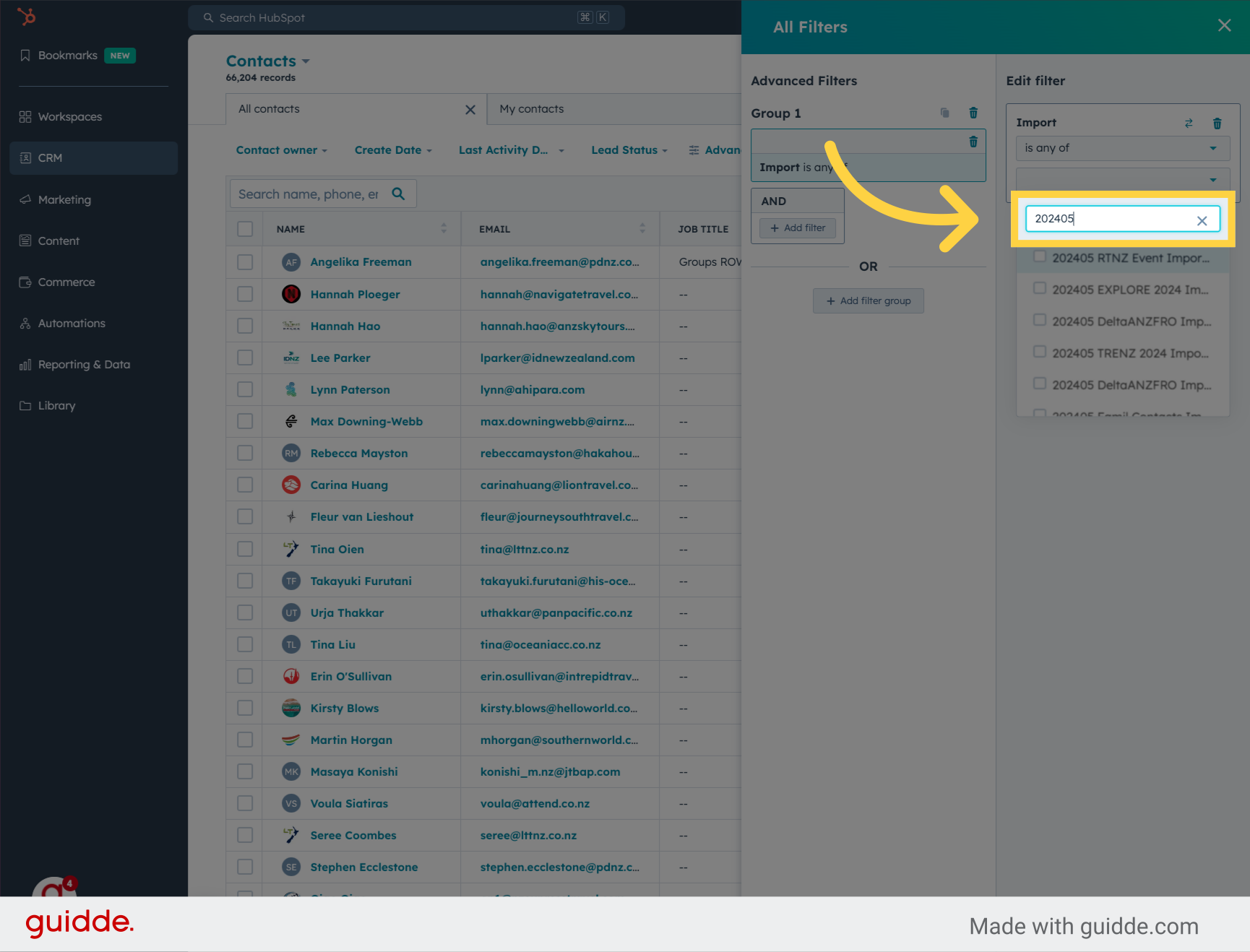
4. Enter a partial name of your import process recently completed
A simple way to gain access to your import records is to use YYYYMM eg 202405
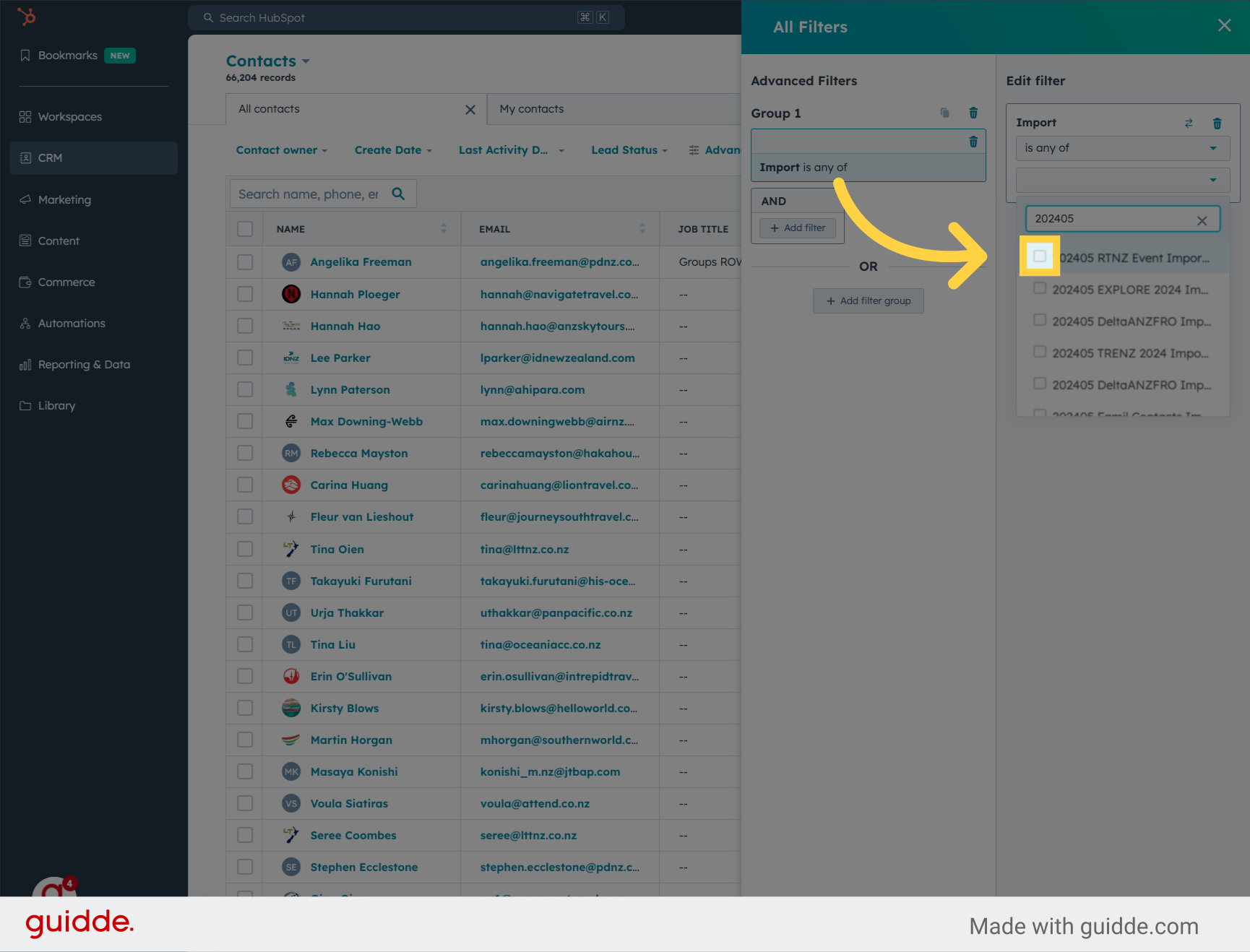
5. Select the relevant Import
In this example, we will choose the "RTNZ" Event Import to filter
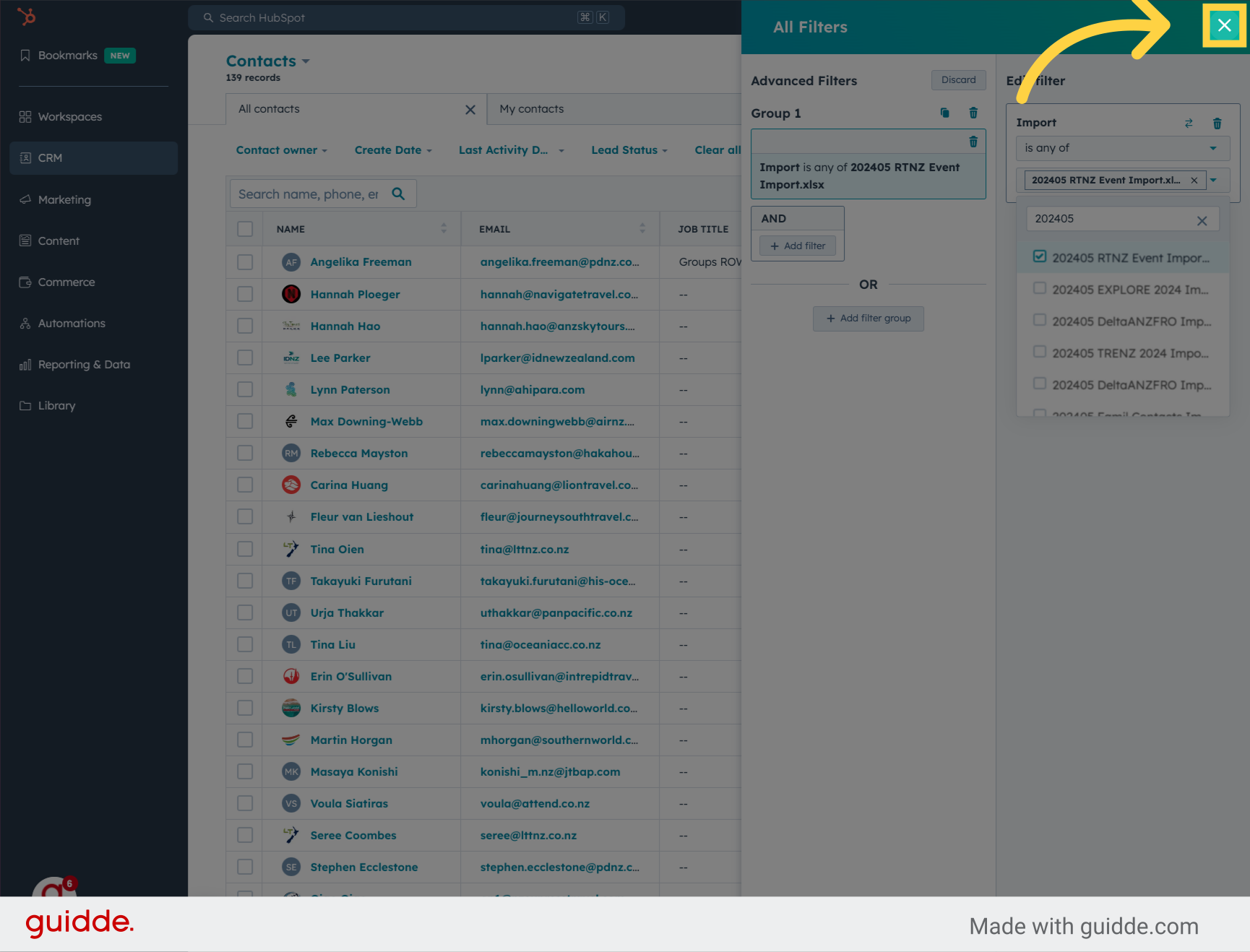
6. Close the Filter panel
You will now see your RTNZ Event Contacts. Remember, you can do exactly the same for Companies later
7. Click "Advanced filters (1)"
You can repeat the process and choose a different list OR you can delete the Filter and see everything again.