
Import HubSpot Contacts and Companies
Learn how to import HubSpot Contacts and Companies with this detailed walkthrough. Follow the instructions below to seamlessly transfer data from a spreadsheet of contact and company details into Hubspot.
Go to app.hubspot.com
1. Click "Import"
From the CRM>Contacts main screen, select "Import" in the top, right corner.

2. Click "Start an import"
Start the import by selecting "Start an import."

3. Click "Import file from computer"
Import a file from your computer by clicking on "Import file from computer."

4. Click "Next"
Proceed to the next step by clicking on "Next."
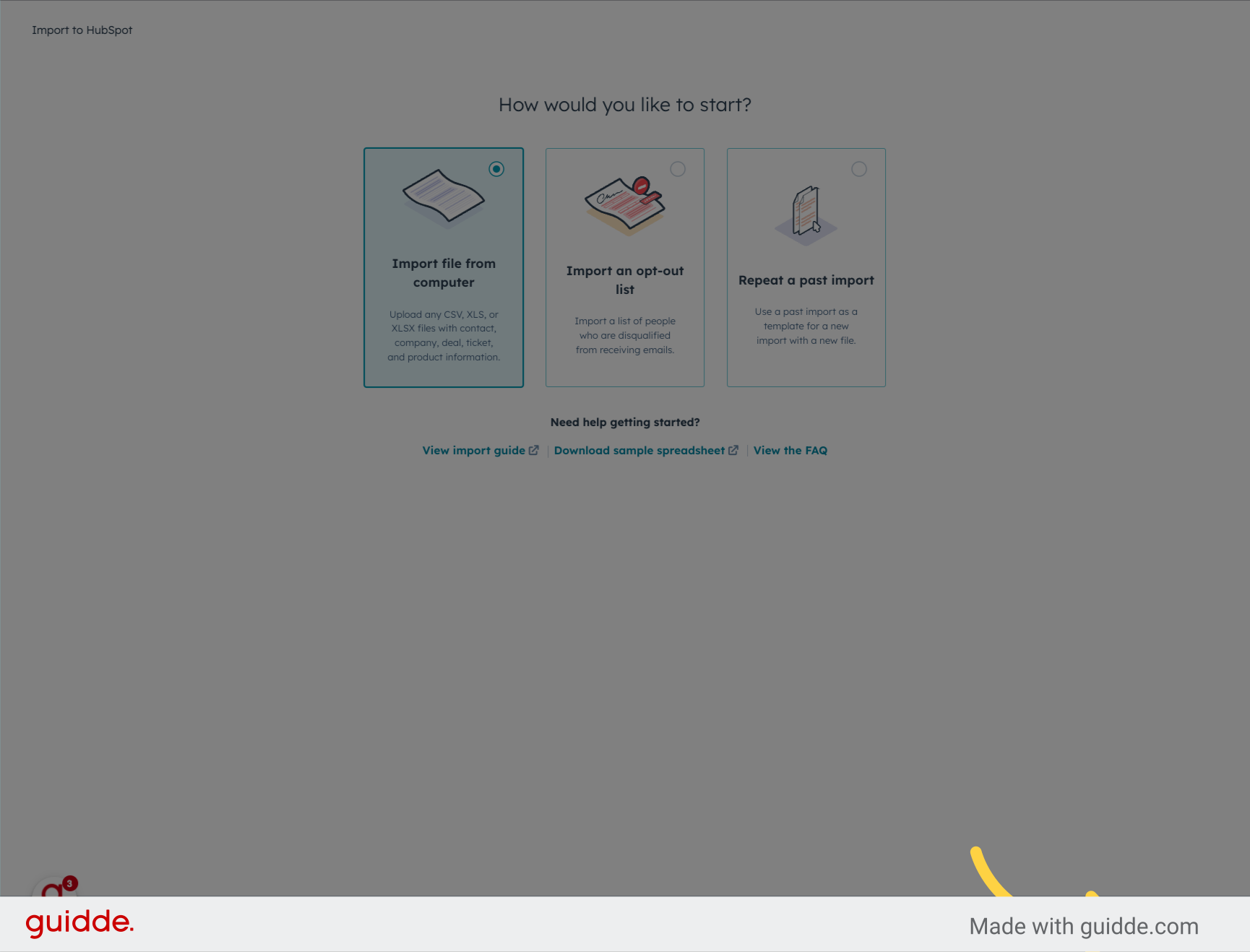
5. Choose "One file"
You are importing a single spreadsheet for this process.

6. Click "Next"
Move forward by clicking on "Next."
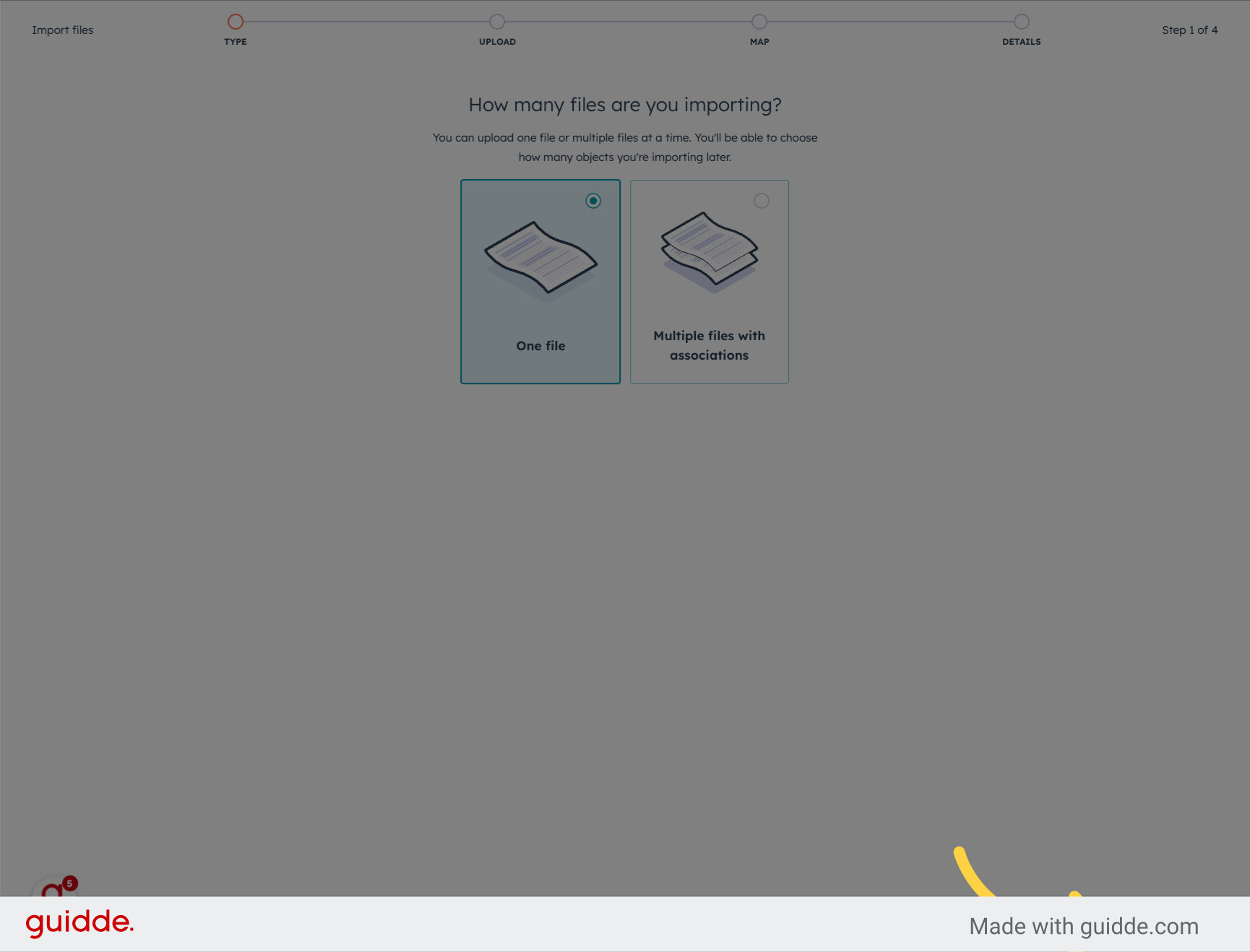
7. Click "Multiple objects"
The import process will create/update contacts and also create/update company records as well.

8. Click "Next"
Continue by clicking on "Next."
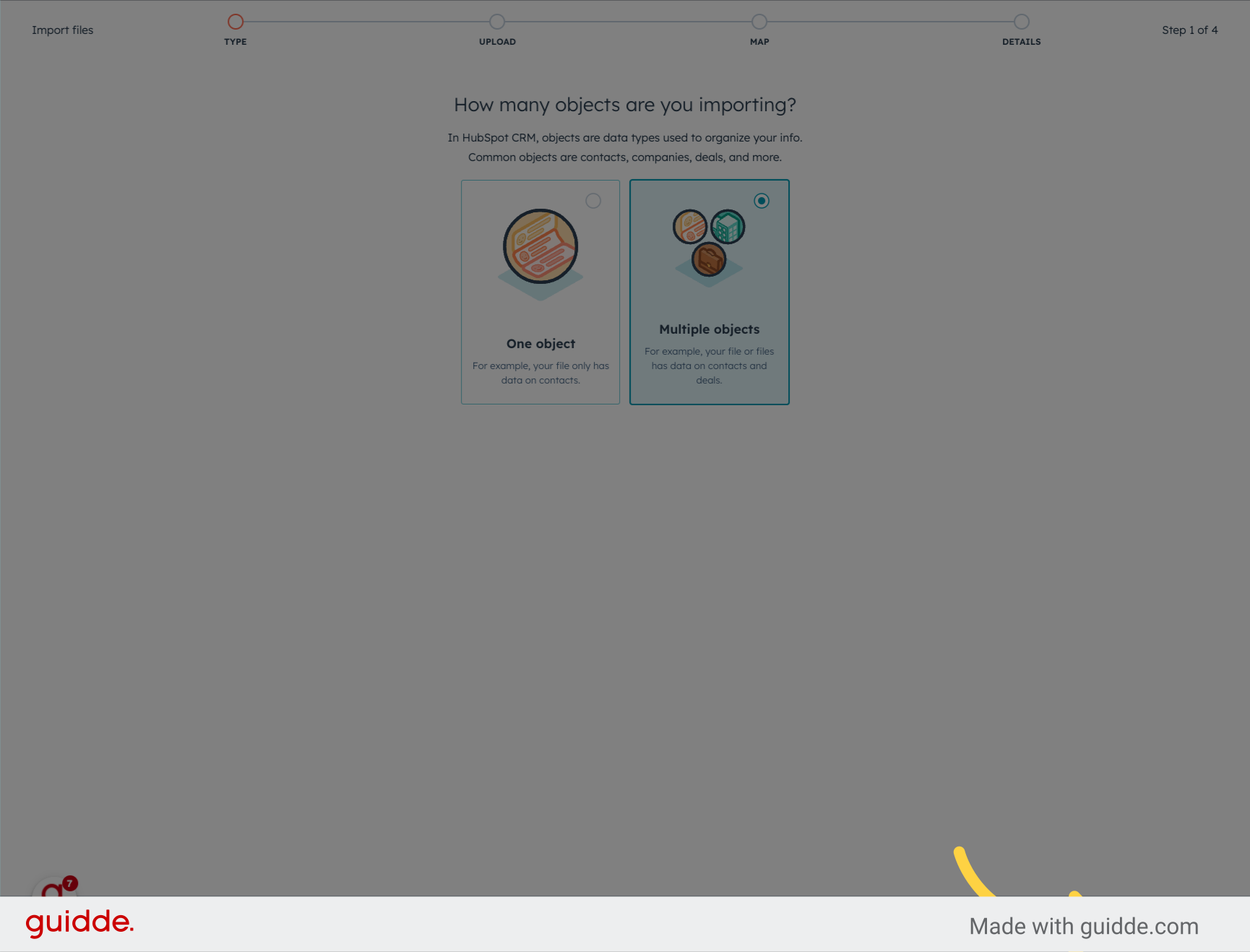
9. Click "Companies" and "Contacts"
Select "Companies" from the options provided.

10. Click "Next"
Proceed to the next step by clicking on "Next."

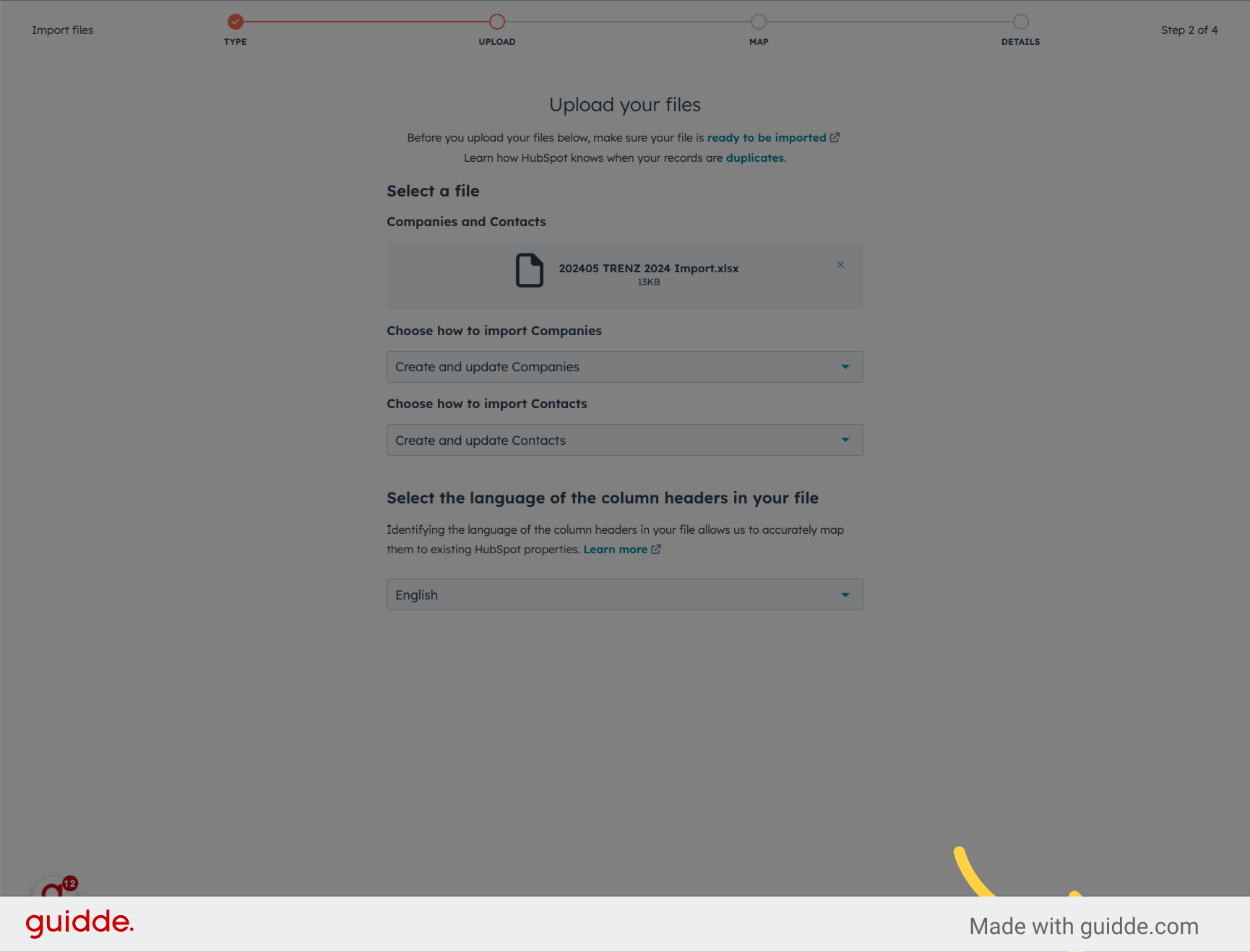
11. Click "choose a file"
Select the file to import by clicking on "choose a file." This will need to be accessible from your computer.

12. Click "Next"
Move forward by clicking on "Next."
13. Ready to star the Import
Ensure that you have green ticks against Company and Contact and that the mappings are set as per the screenshot below. If there are any issues identified by HubSpot with the data to be imported, you can drill into the mapping from this screen by clicking on the object. You will need to address data issue(s) if they exist by editing your import file. Contact your HubSpot Administrator if you are unsure. In the column list below you may have both green ticks and grey ticks. This is ok, grey ticks simply mean there is no data in this column this time.

14. Choose "Legitimate interest - Lead" and set them as marketing contacts
Select "Legitimate interest - Lead" from the options, choose to set the imported records as marketing contacts.

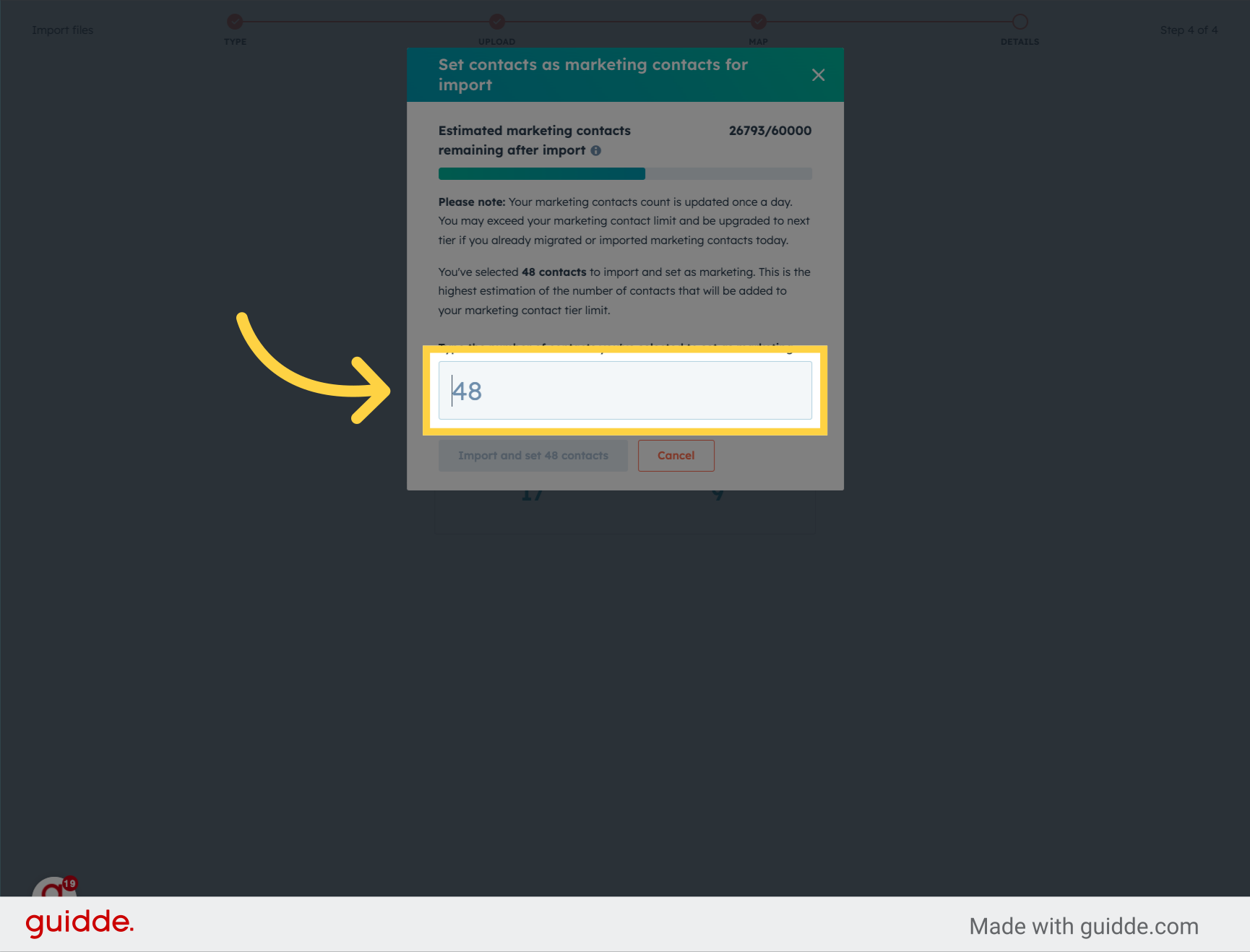
15. Click into "Type the number of contacts you've selected to set as marketing."
Overwrite the number that appears. Enter the number of contacts to set for marketing purposes.
16. Click "Import and set X contacts"
Initiate the import by clicking on the button.

17. Click "Finish import"
Complete the import process by clicking on "Finish import."

This guide provides comprehensive steps on importing HubSpot Contacts and Companies, ensuring a smooth data transfer process. Follow the provided instructions to efficiently manage your contacts and companies within the HubSpot platform.
You can now head over to CRM>Contacts and review your import. For instructions on how to apply filters to the Contact grid so that you can see the recently imported records, check out this KB article.